
SUMMARY
The method for acquiring Minitab remains unchanged. The only alteration will be to the software login process. Users will continue to contact the IT Helpdesk to have the software deployed to their Mac PCs, as is the current practice.
Note: Users should request Minitab 20 before proceeding.
DETAILS
Accessing Minitab Statistical Software now requires single sign-on (SSO).
1) Submit a request form found at Colab>Departments>Global Technology>CCR&I> Minitab License Request
2) Request the VMware Horizon through Okta and submit a Fresh service ticket requesting ‘Shared Desktop’ for VMWare horizon (if you don’t have access already)
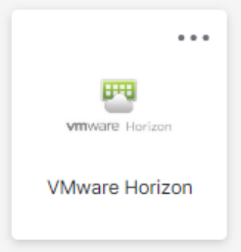
3) After the VMWare Horizon and Shared Desktop are installed. Navigate to your Okta apps and click on VMWare Horizon to launch.
If it’s your first time you will need to enter your Okta credentials.
Example:
US\Firstname Lastname
YourPassword
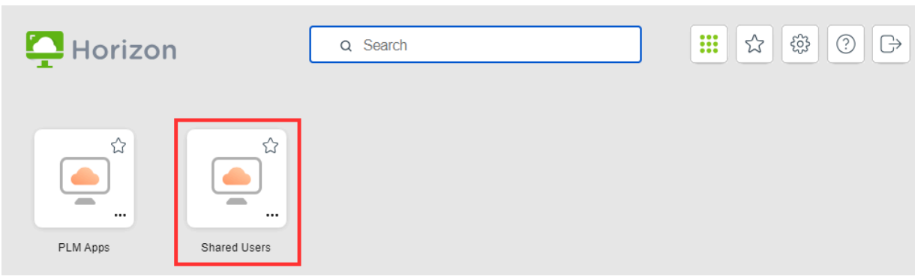
4) Once logged in a Windows virtual machine will launch.

5) Click on the Minitab Statistical Software icon to open Minitab.

6) After the application opens, click on ‘Help’ which is located in the menu at the top of the screen.

7) Click on ‘About Minitab’

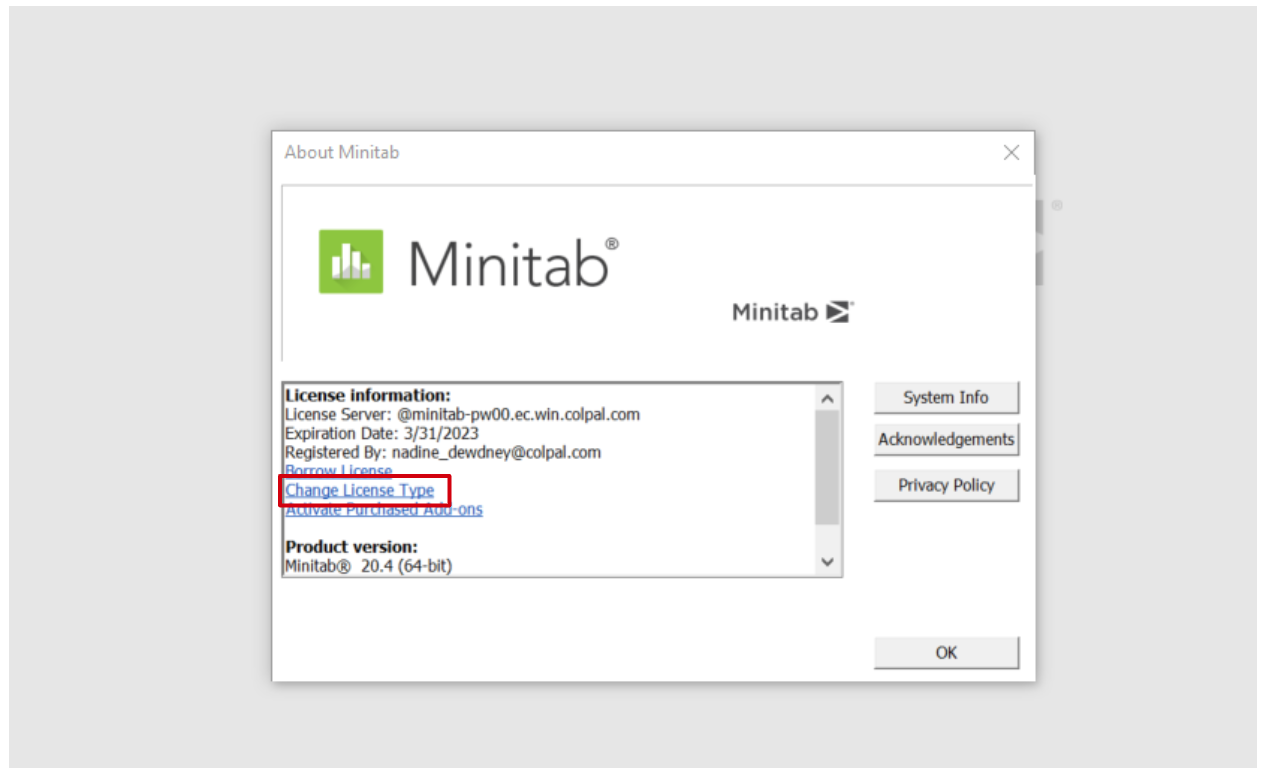
8) A box containing licensing information will appear. Click on the ‘Change License Type’ link.
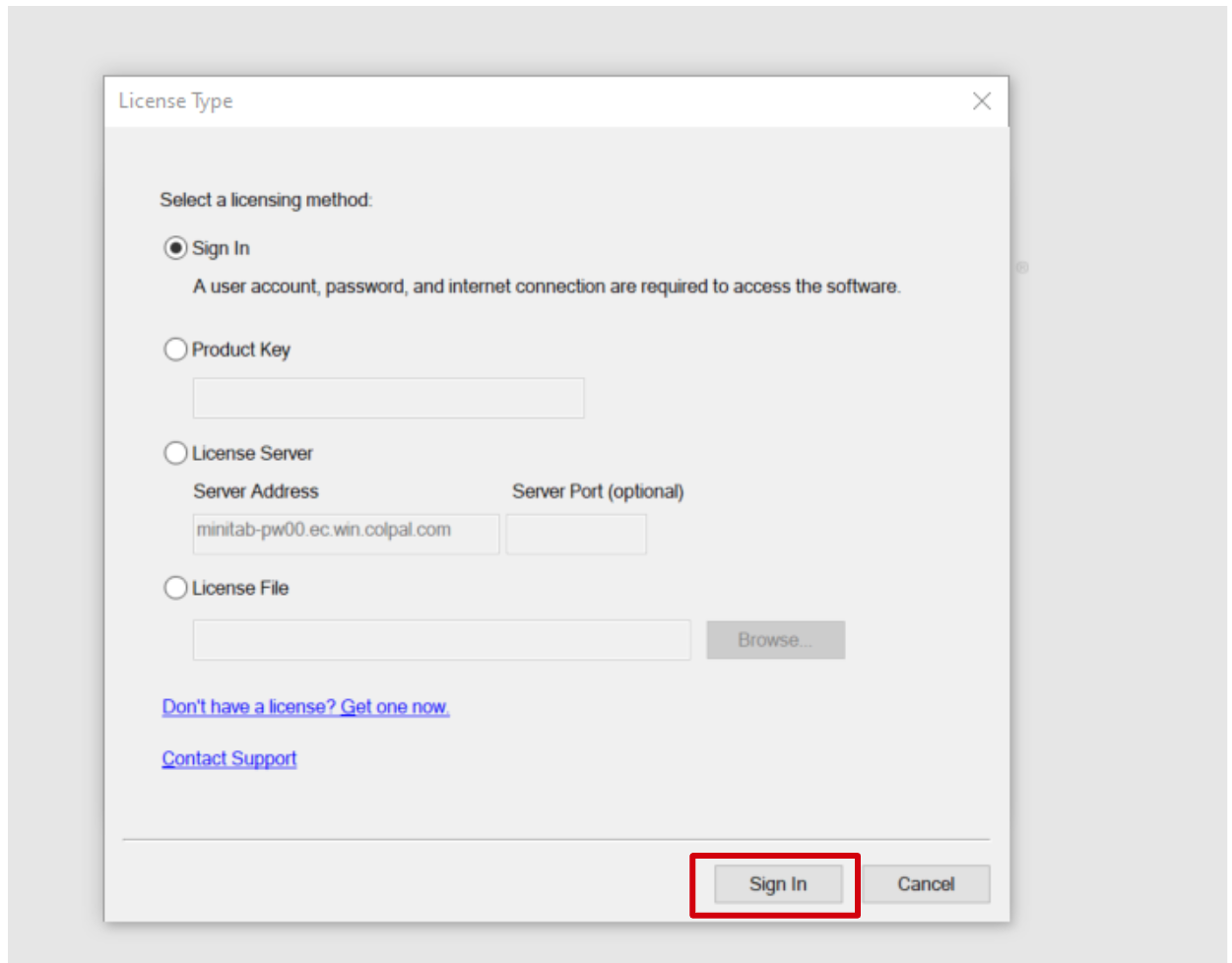
9) Select the ‘Sign In’ option from the License Type box.
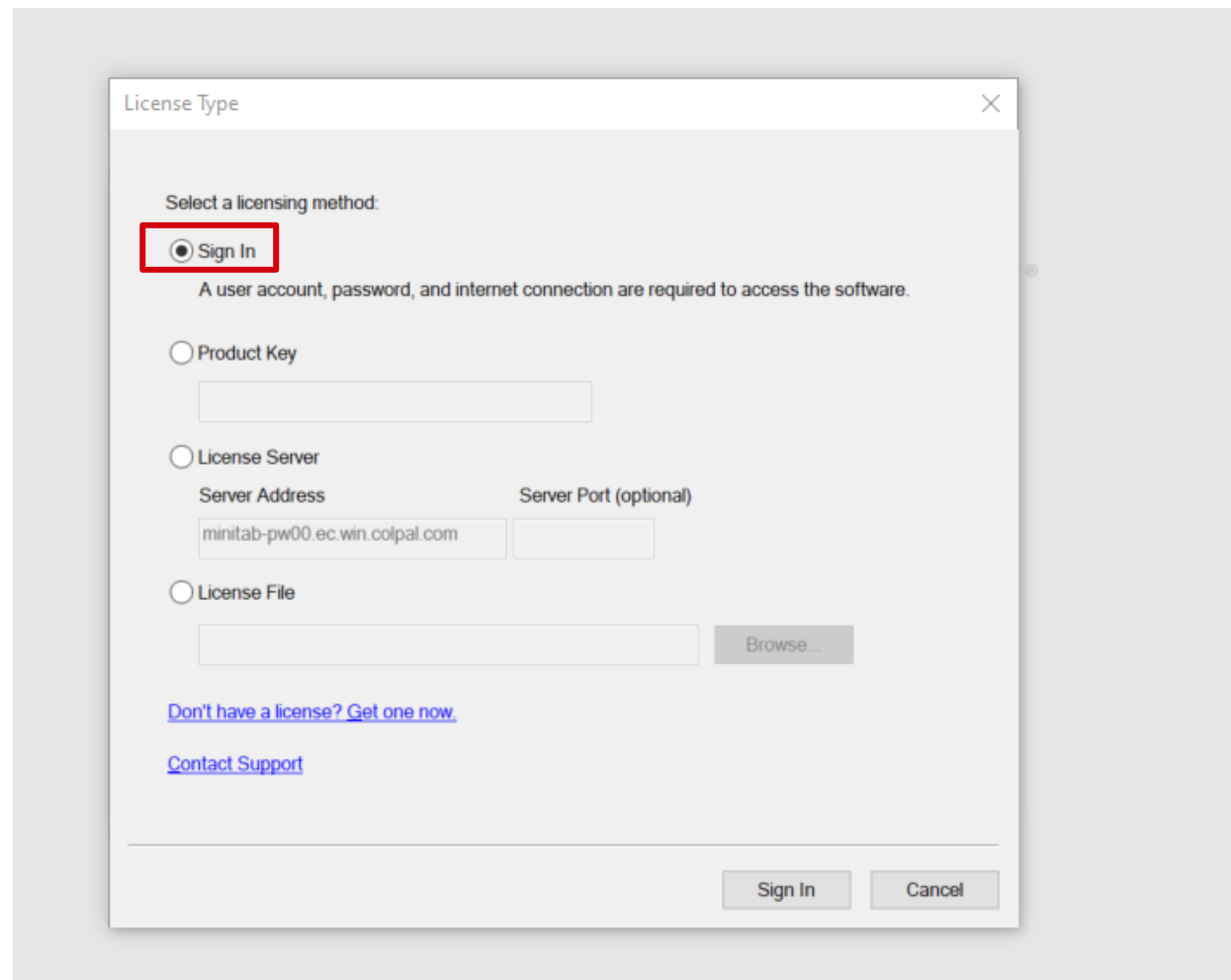
10) Click the ‘Sign In’ button which is at the bottom of the box.
11. Enter your email address in the ‘Email’ field, select the checkbox next to ‘Keep me signed in’ then click ‘Next’.
Note: If you are prompted to enter a password in addition to their email address, then you need to be added to the Minitab user group in Okta. If you have already submitted the Minitab License Request form but still cannot access contact minitab_app_owners@colpal.com

12) You will be prompted to to choose between ‘Minitab License Portal’ and ‘Colgate-Palmolive SSO’ Choose Colgate-Palmolive SSO

13) The Okta MFA box will appear and select preferred method of authentication.
14) Once the authentication is complete, the Minitab landing page will appear and the software will be available for use.

If there are any other issues of Minitab software for which troubleshooting will be required, then please send email to minitab_app_owners@colpal.com