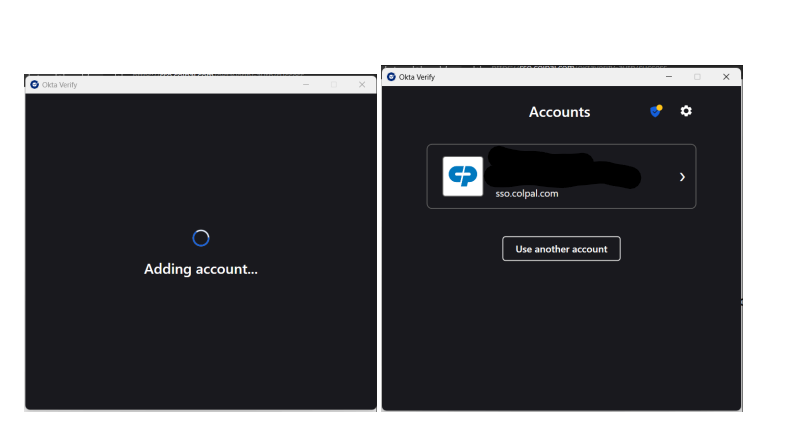
- To setup Okta Desktop Verify, Open Windows option and you will be prompted to enter your Colgate Okta username and Password.
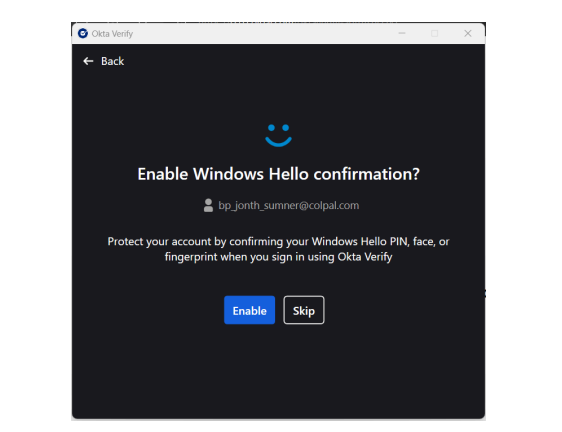
- Browser will pop up “Your Identity is Verified” and bring you back to Okta verify desktop application, asking you if you would like to Enable Windows Hello.
- Click on Enable.
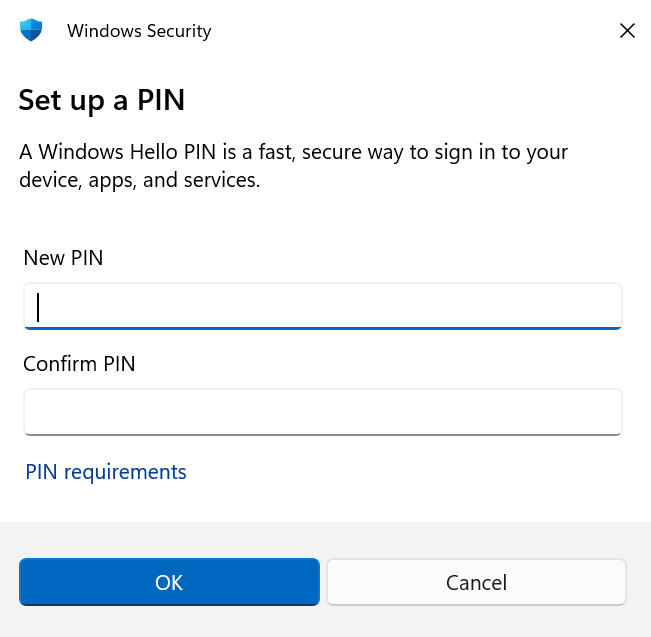
- Once you click on "Enable," It will prompt you to set up your Windows Hello PIN.
5. To reset or remove the PIN later, navigate to: Okta Verify Account > Sign in options > PIN (Windows Hello)
6. It will then bring you to the accounts screen, showing your account has been added to Okta Verify Desktop.