
SUMMARY
Secure Login Client is needed to login to SAP systems automatically using single sign-on.
DETAILS
If you are prompted to enter your login credentials for SAP systems, then follow steps to enable single sign on:
1) Click on small down arrow right side down on taskbar
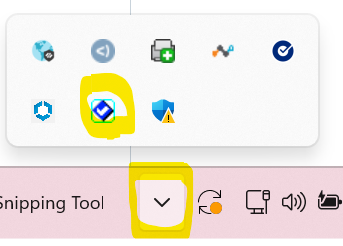
2) Select the blue check icon.
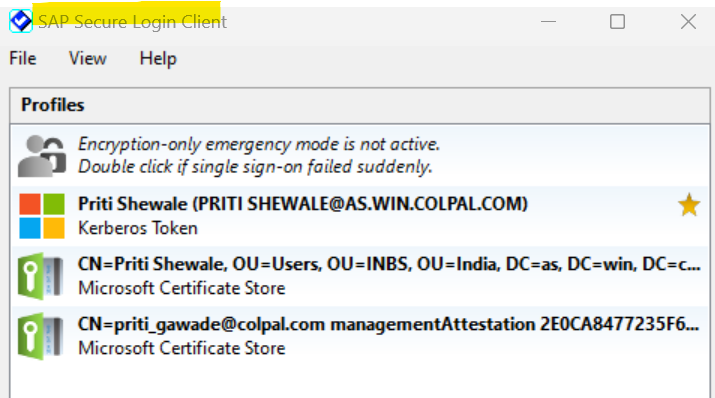
3) Open SAP Secure Login client.
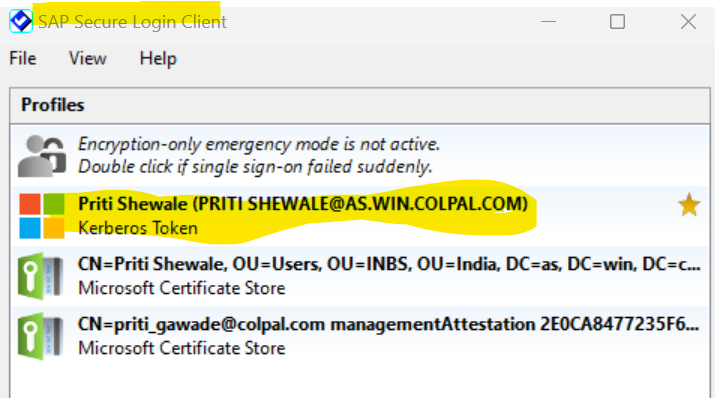
4) Right Click on your name and select "Use Profile for SAP Application"
5) Close sap application, open again and you will be able to login.
Please be advised that starting from May 16, 2026, the following SAP systems will transition to SAP RISE:
- HUP
- FMP
- NGP
- GXP
As part of this transition, these systems will now require a 15-character password for logging in. Following this change, users who log in manually will be forced to update their passwords.
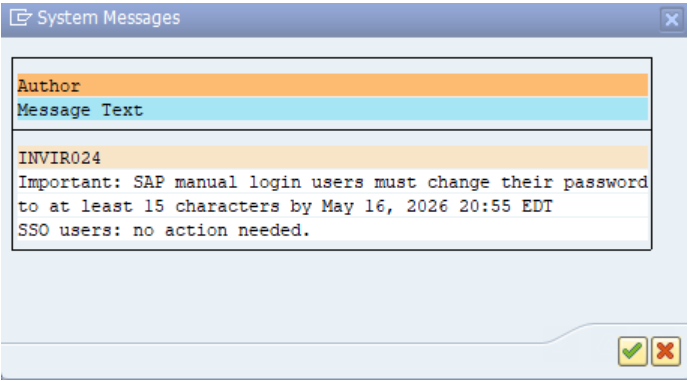
A reminder message has already been posted within the SAP systems for manual login users. Please see the attached screenshot for reference regarding the notification they will see.
Kindly refer to the document for more details - SAP RISE: Password Length 8 to 15