
SUMMARY
Google Chrome allows you to sync many information, likes bookmarks and extensions, so that you do not need to transfer or add these to your other devices.
However, Google apps session times out due to 20 hour policy, you need to authenticates to Gsuite by going to Okta the Synchronization should resume.
DETAILS
In order to turn on sync in the Chrome browser follow below steps:
- On your computer, open Google Chrome
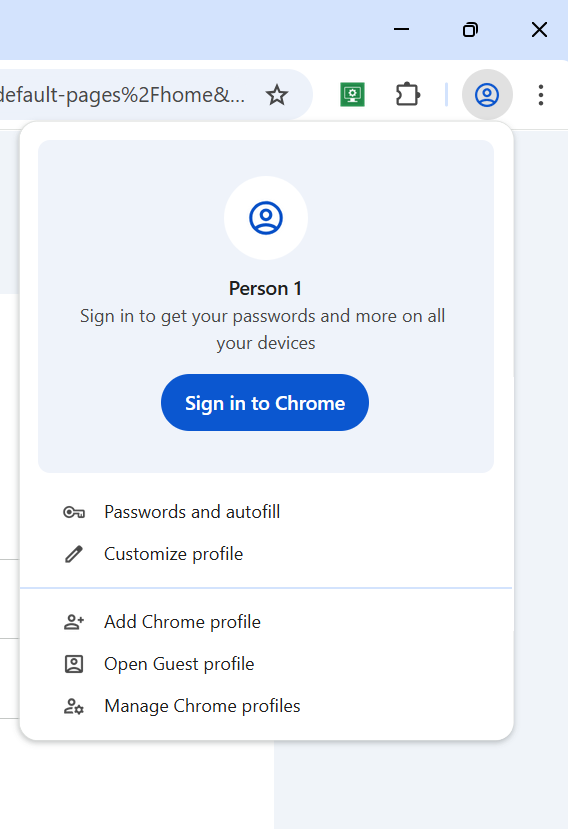
- Click your Profile icon (picture/initial) in the top-right corner and click on Sign in to Chrome.
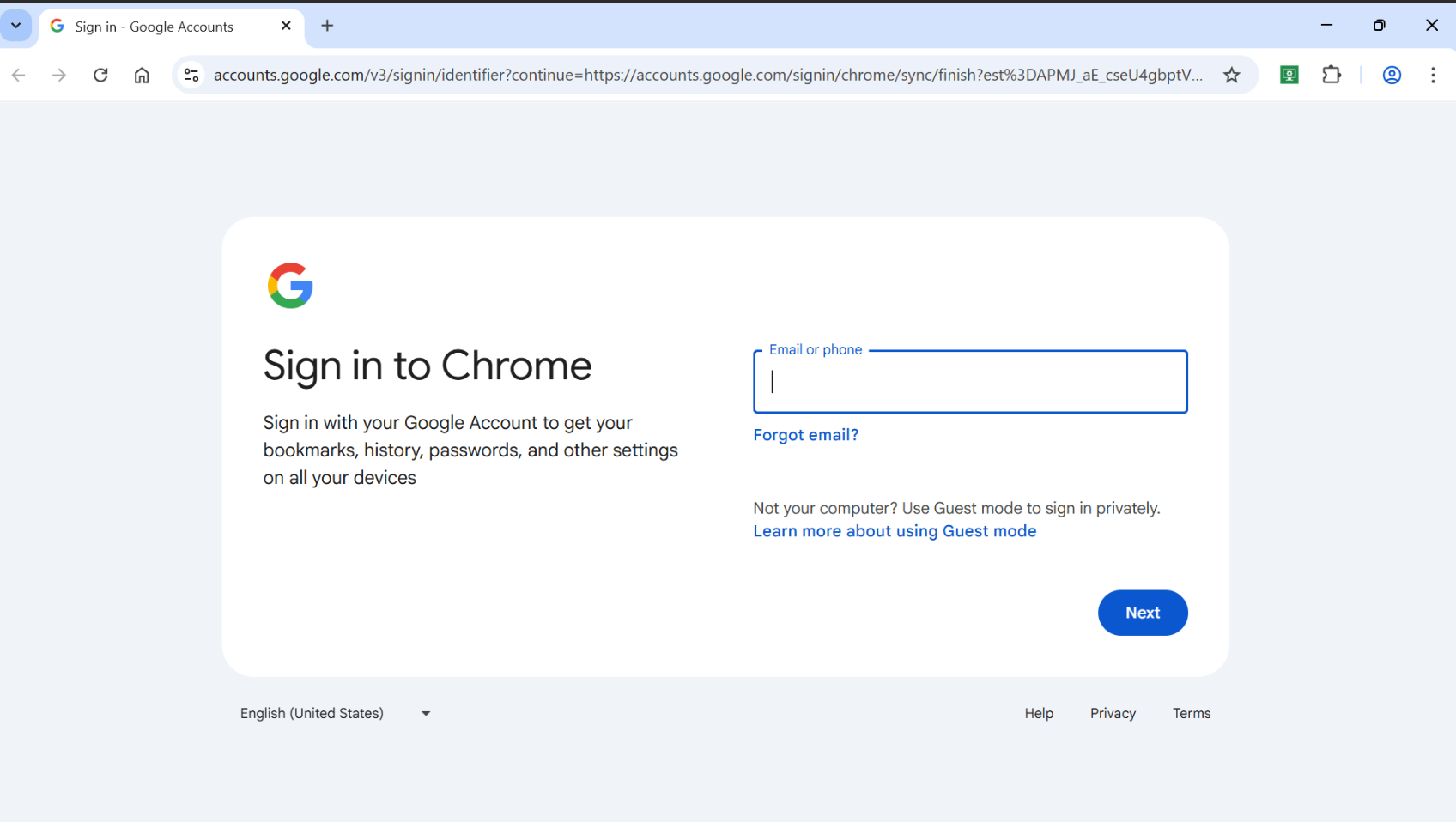
3.Sign in to your Google Account using your email and password.
4.A pop-up will ask "Turn on Sync?". Click Yes, I'm in.
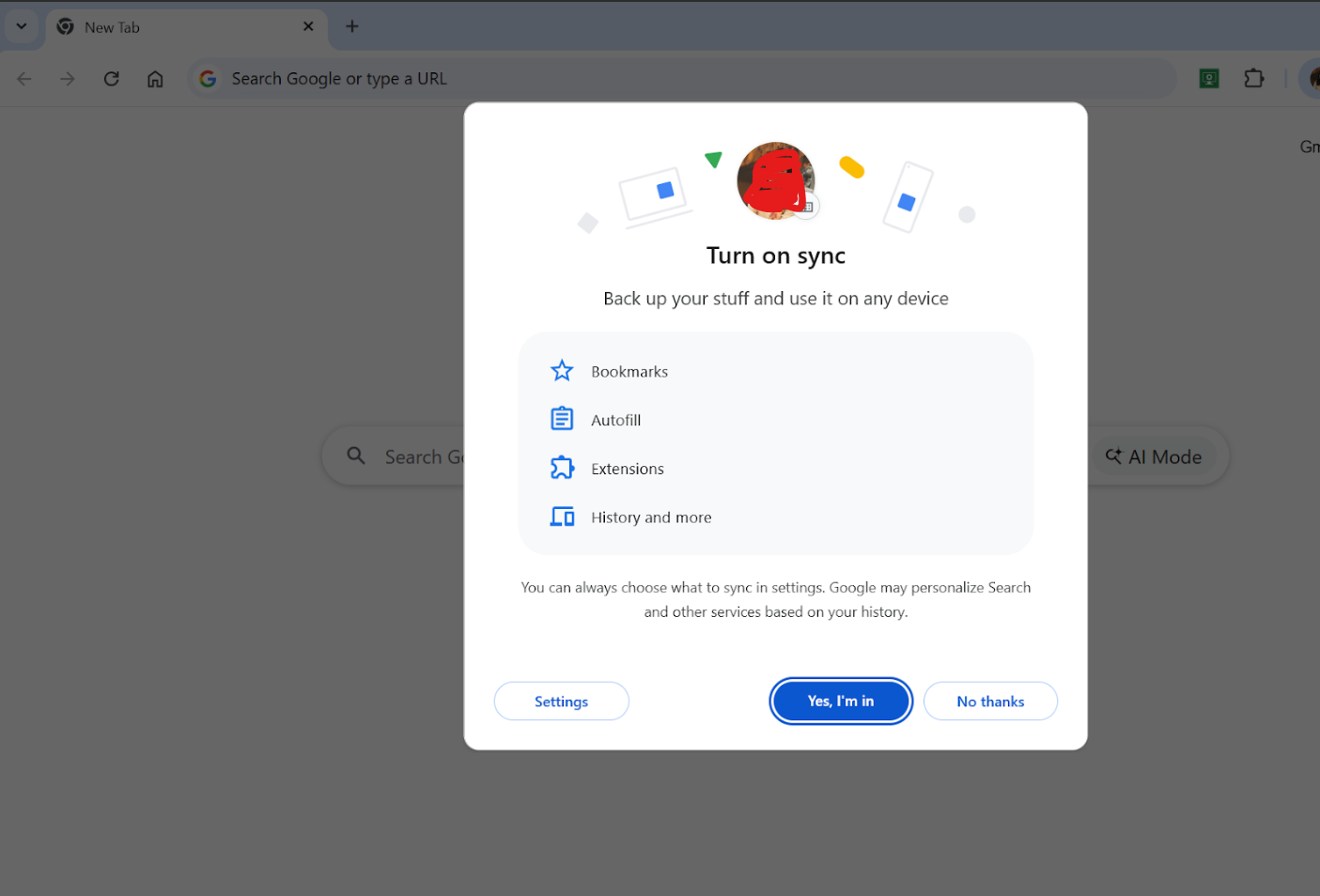
Once your Google Chrome profile has finished syncing, your bookmarks and extensions will be automatically restored to their previous state.