
SUMMARY
This process is ONLY Applicable for physical installation on Windows & MAC PC in Business Domain.
It is NOT applicable for Cloud based Software requests on Business Domain computers.
DETAILS
Scenario 1
Steps to Install software from Workspace ONE Intelligent Hub (Windows/Mac) :
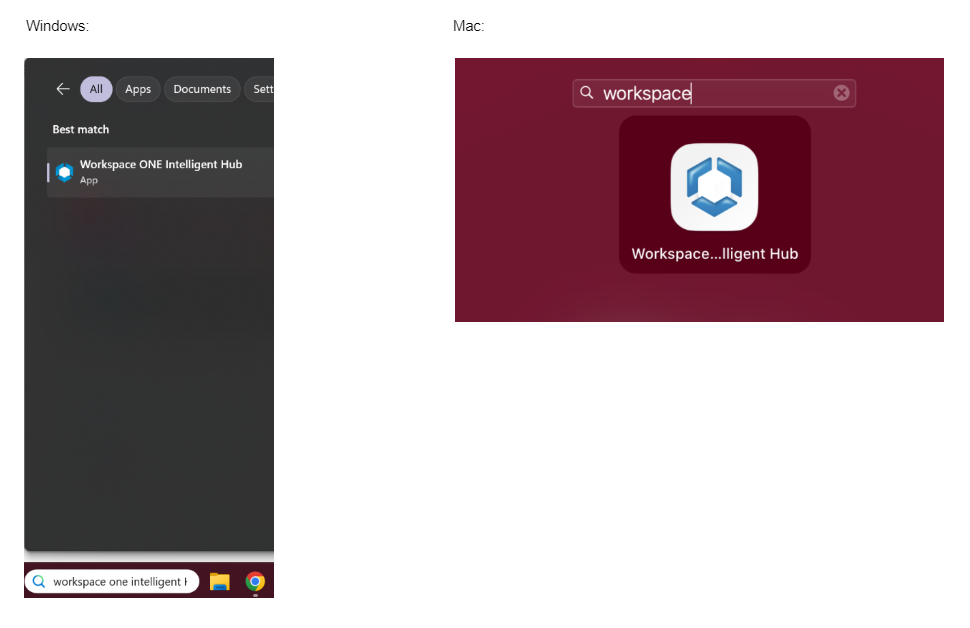
1. In 'Search Field'' type Workspace ONE Intelligent Hub and open It.
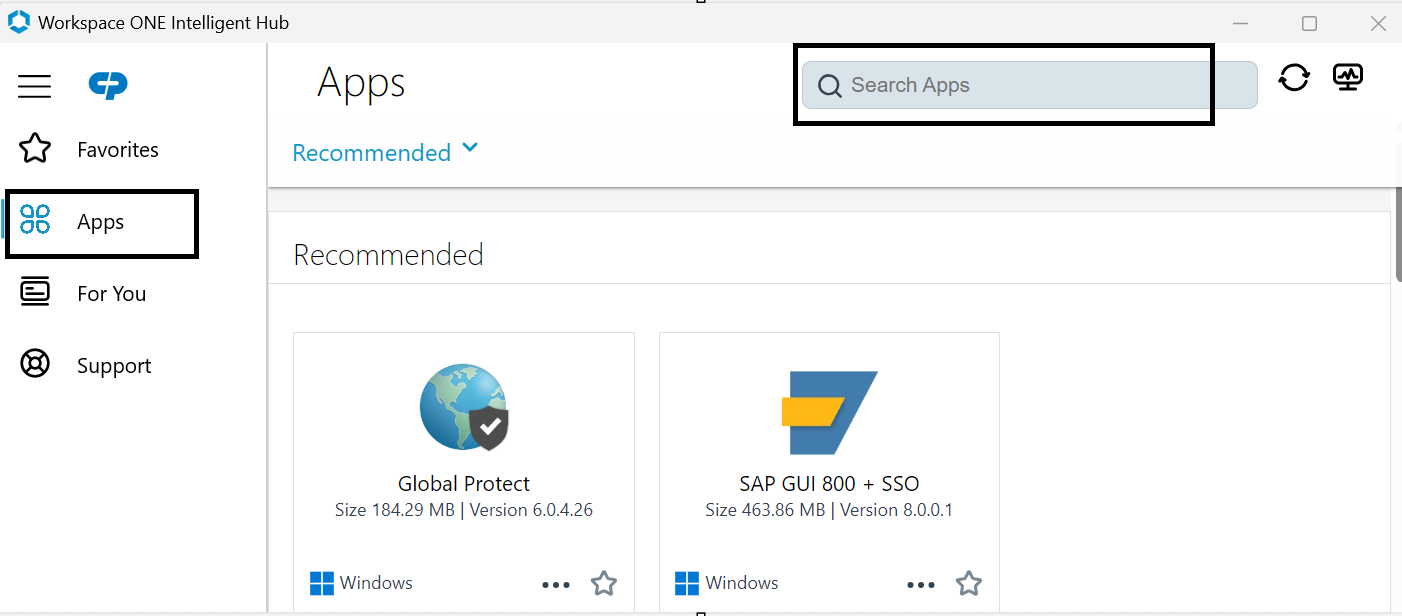
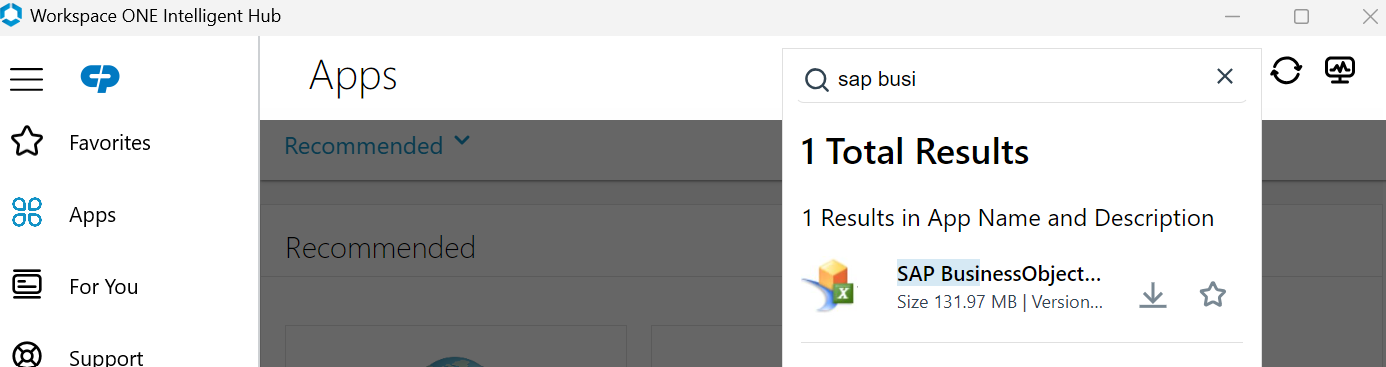
2. Go to Apps Tab and Search for required software.
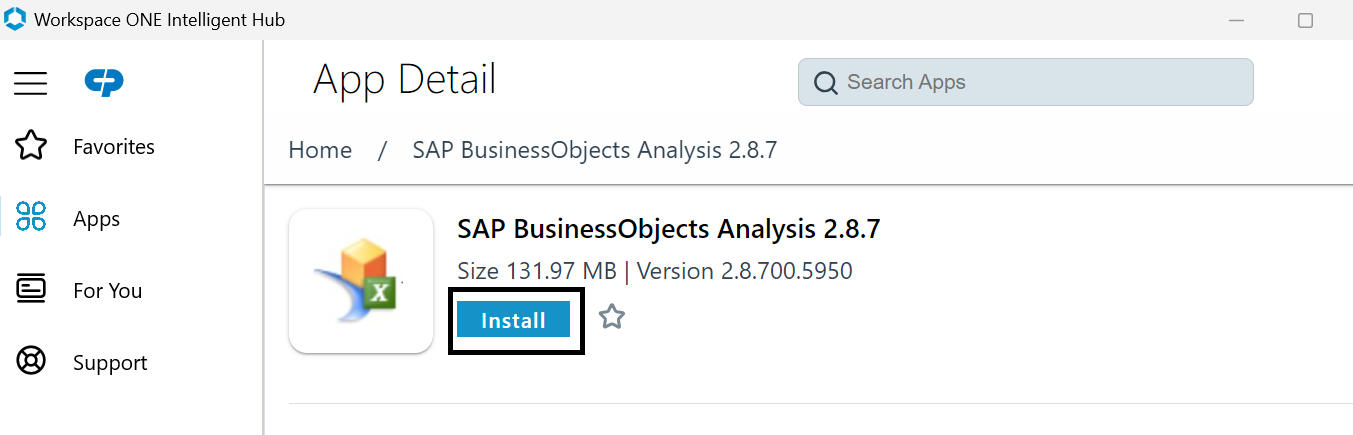
3. Open the software and Click on install button.
4. Once installation is done you will get notification of it and you can check installation progress by clicking on Activity Monitor Tab.

Scenario 2 :
If your requested software is NOT available in Workspace ONE Intelligent Hub then check Global Software List.
a) If software is present in Global software list then raise a service request ticket using below link.
b) If software is not present in Global Software list then raise service request ticket for New Software to be approved using below link.
Your request will be processed as per the workflow.
You will receive notifications accordingly through your Service Request ticket till it gets completed.