
SUMMARY
This article will give you steps to add your network printer on windows/mac laptop.
DETAILS
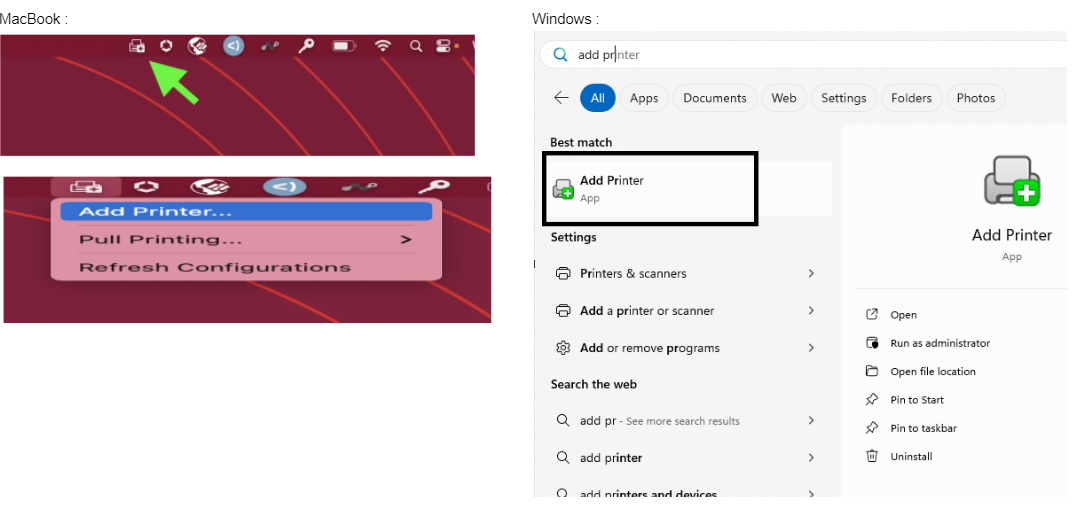
1. Search for "Add Printer".
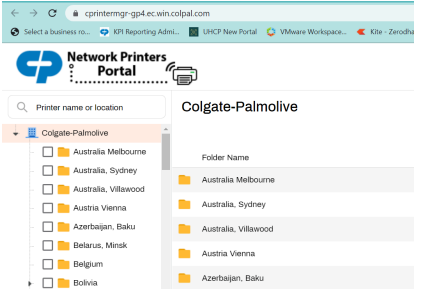
2. Network Printer Portal page will open.
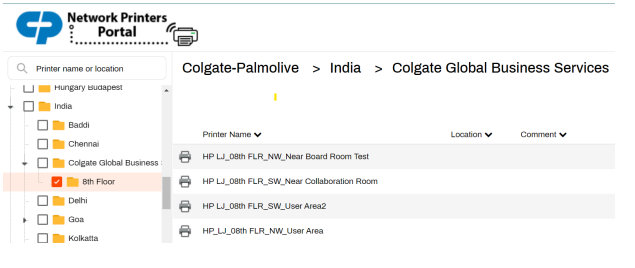
3. Select the location and click on the printer for installation.
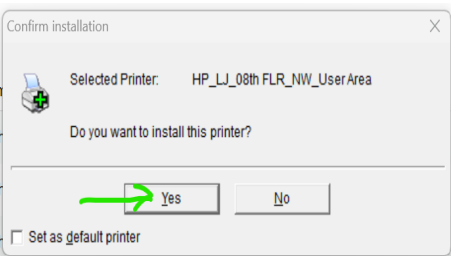
4. Click on "Yes" to proceed further for installation
5. Installation and configuration of printer will start.
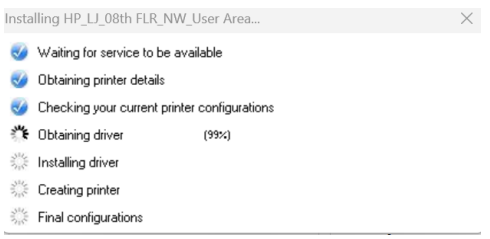
6. Installation completed.
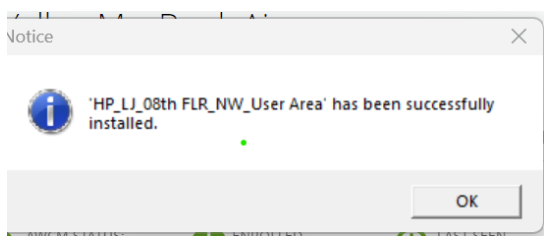
Note: If the installation fails please DO NOT reinstall the PrinterLogic agent. Instead, use the "AskIT Bot" to raise a ticket for IT Helpdesk Team.
7. Once the network printer is installed, you can see that installed printer under Printers and scanners in your system.
Windows : Setting >> Bluetooth & Device >> Printers & scanners
Mac : Setting >> Printer & scanners
Note: If the Printer Logic client is not available in the system, you can access via web link as well. - Printer Logic
If It asks for any code, please enter code glx047.