
Requesters can share service requests and tickets with their subordinates. Once shared, they will be able to view & add a note to the ticket. .
For example, imagine a new employee raising a ticket to procure a few assets for his WFH setup. It is getting delayed, so he wants to loop in his manager to look at the ticket status.
Requesters sharing a ticket from the support portal.
1.Open the ticket that you want to share.
2.Select "Share".
3. This action will prompt a dialog box enabling the requester to look for people in the search bar. Requesters can choose the user and hit the share button to share the ticket.

Requesters accessing the shared tickets
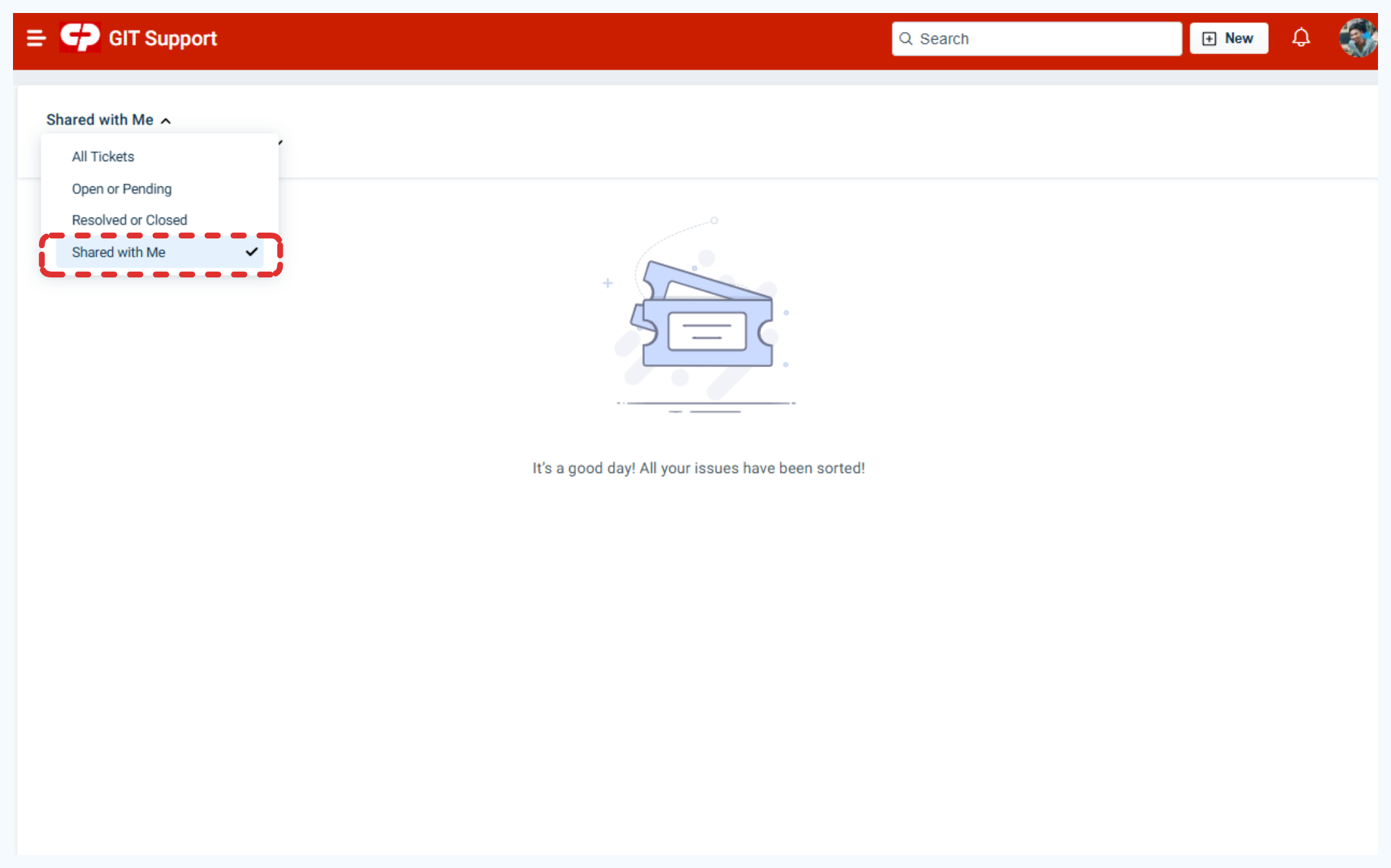
If the ticket is shared with other Requesters, they can view it from their portal.
FAQs
1. Can I un-share my ticket or SR with anyone?
>> Yes, you can click on the Share button to view the list of people the ticket has been shared with. You can then click on ‘Remove’ next to the person you’d like to stop sharing.
2. What actions can a shared ticket take?
>> Once a ticket is shared with a person, they will receive an email notifications for every ticket update. They can also view all the shared tickets from the "Shared with me" view. They can view and add a note to the ticket.
3. How many people can I share the ticket with?
>> A maximum of 10 email IDs can be added to share ticket with.