Preventing Double Booking When Scheduling New Patients
Overview
When scheduling a New Patient (NP) appointment you may notice that the system appears to allow a double-booking. This happens when a slot that is not labeled 'Any20'/'Est20' slot sits directly beneath the NP appointment time.To ensure correct scheduling, you must close out the slot so the appointment duration is complete.

Step-by-Step Instructions
Watch for the Yellow “Duration Conflict” Error:
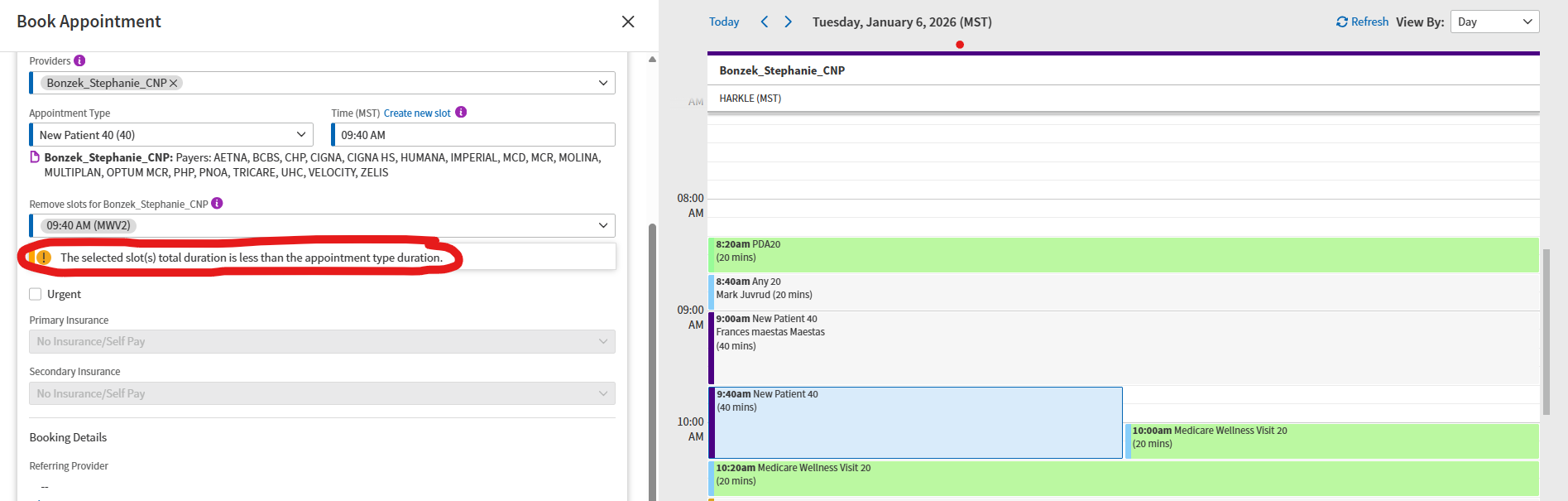
If the system detects an overlapping MAWV slot, you will see a yellow warning message on the left side of the appointment details pane.
This alert indicates that the time slot beneath the NP appointment must be closed.
Open the “Remove Slots” Dropdown

In the appointment details, locate:Remove slots for 'ProviderName' (e.g.Remove slots for Bonzek_Stephanie_CNP)
Expand the dropdown to view all available slot segments.
Close the Overlapping MAWV Slot
Identify the slot directly under the NP appointment.
Example:
NP appointment: 9:40 AM
Slot that must be closed: 10:00 AM (MWV2)
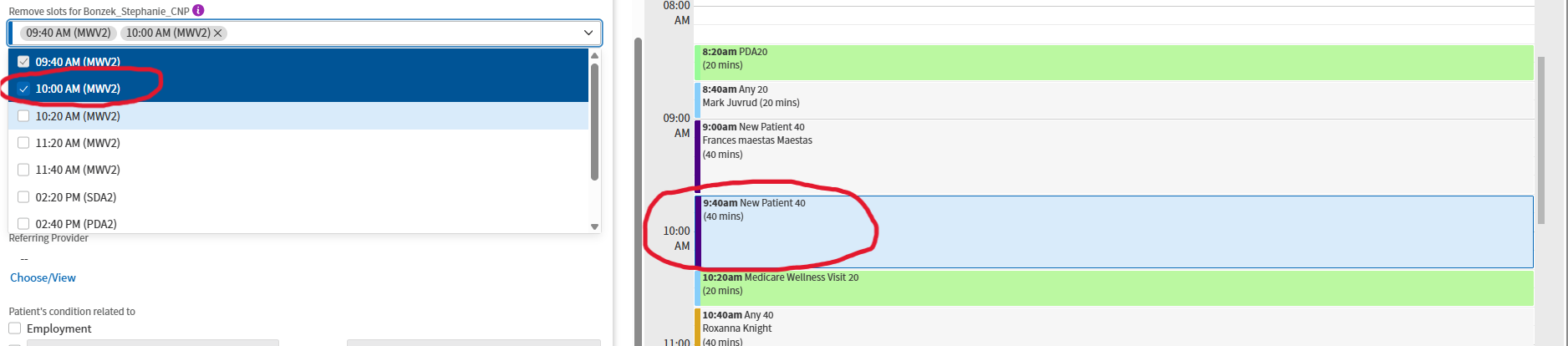
Make the Duration Whole
If needed, select both the NP start time segment and the segment below it to ensure the visit covers the full duration.
Example:
Select 9:40 AM
Select 10:00 AM This creates a full 40-minute block.
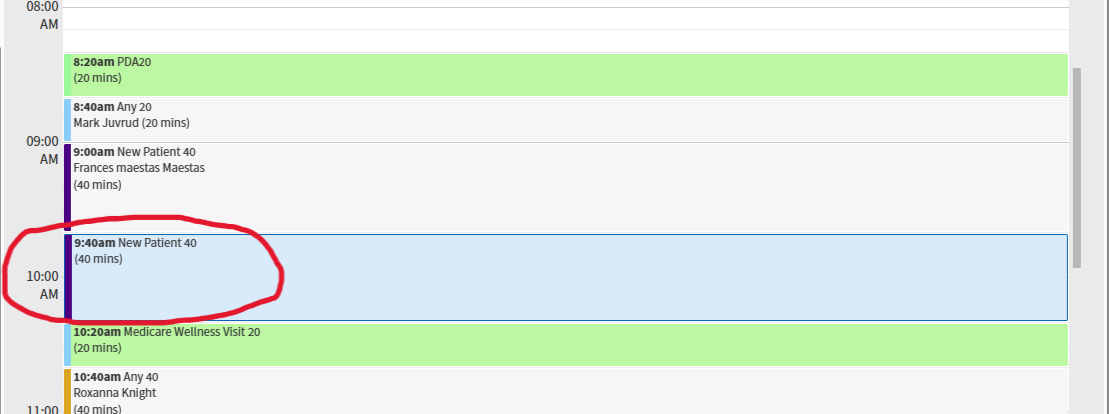
Save the Appointment
Once the required slot(s) are closed out, the error will disappear.
Proceed with scheduling as normal.
Important Notes
The system cannot automatically close MAWV slots — staff must manually remove them when scheduling NPs.
Only close the slot directly affected (the one beneath the appointment start time).
This process prevents double bookings and protects full appointment duration.